Getting access to the platform
To access the any2any platform, you need to be invited by an admin user. Invites containing instructions to start the registration process are sent from hello@any2any.co.
Invitation
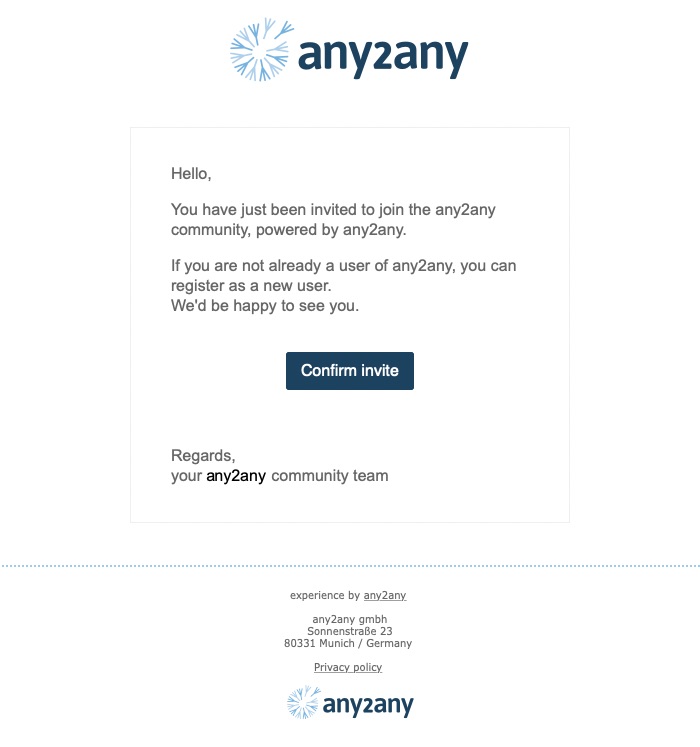
Once invited you will receive an invitation Email (as shown below). Clicking on the Confirm Invite button will lead you to:
(a) The Sign-up/Login screen if do not haven an account or if you are not logged in
OR
(b) A confirmation prompt if you are registered and already logged in
(a) Sign-up or Login (not logged in)
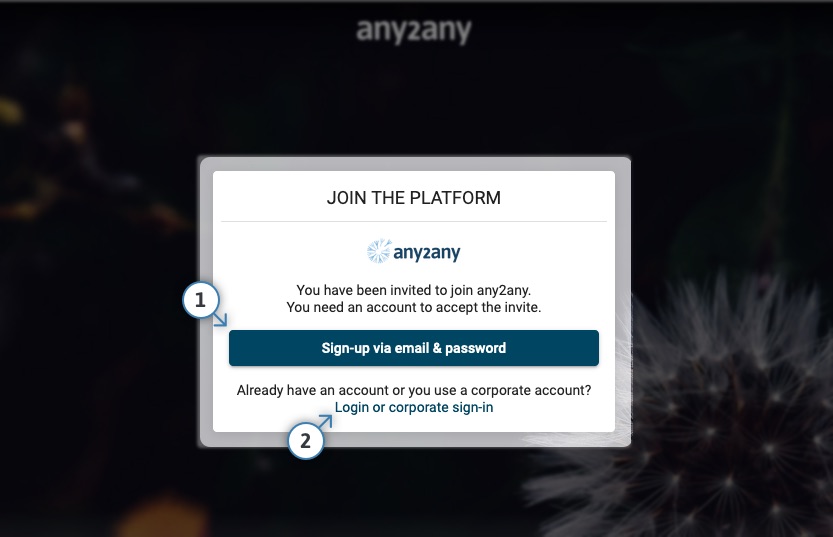
If you have not registered an account yet or if you are not logged into your existing account, pressing the Confirm Invite button will lead you to the screen as shown below. Please choose the appropriate option:
(1) Sign-up: if you do not have an account on the any2any platform yet
(2) Login: if you already have an existing account on the any2any platform
(b) Confirmation prompt (logged in)
If you are already logged into your existing account, you will be asked to confirm or decline the invite. Please note that declining the invite does not cancel it: if you want to accept the invite after declining it in this step, simply press the Confirm Invite button from the invitation mail again.
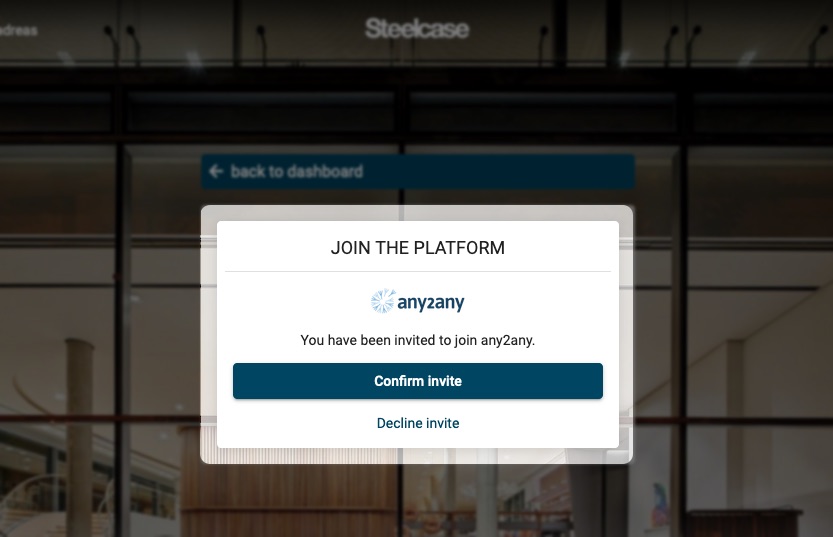
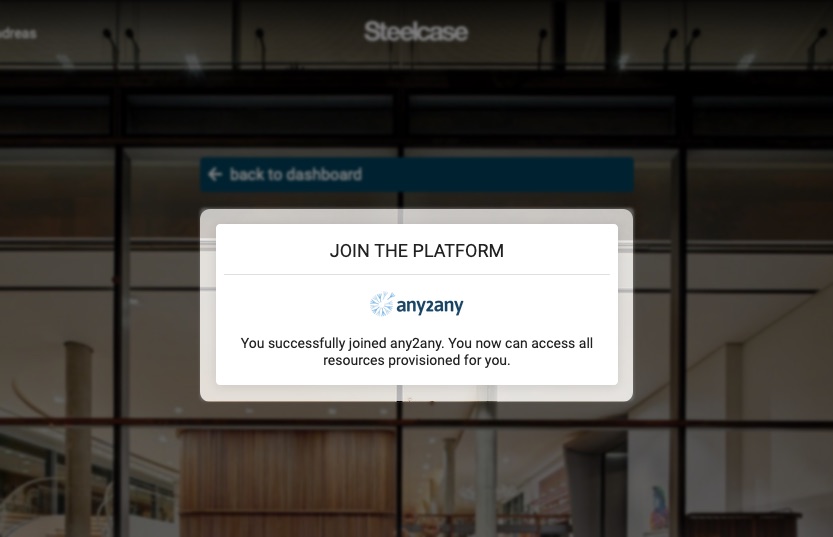
After confirming the invite your account will be granted appropriate additional permissions, and you will be redirected to the Dashboard
Registration
Clicking on the Sign-up with email and password button will take you to a form for completing the registration process. Fill out all information and hit Create account to register for an account. To enable a faster log-in in the optional any2any outlook add-in, it is recommended to use the same email address you use in outlook for registration.
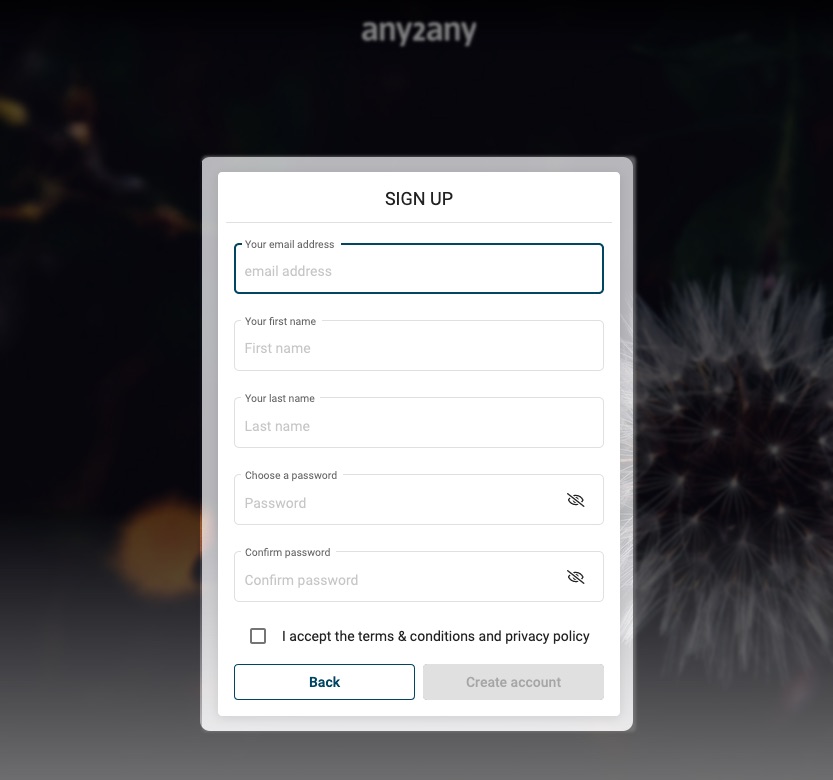
After this step your registration on the platform is complete. Note that you may initially only be able to see public resources - to see resources belonging to a specific organisation you may still need to be invited to this resource by an admin . See the troubleshooting section for more information.
Logging in
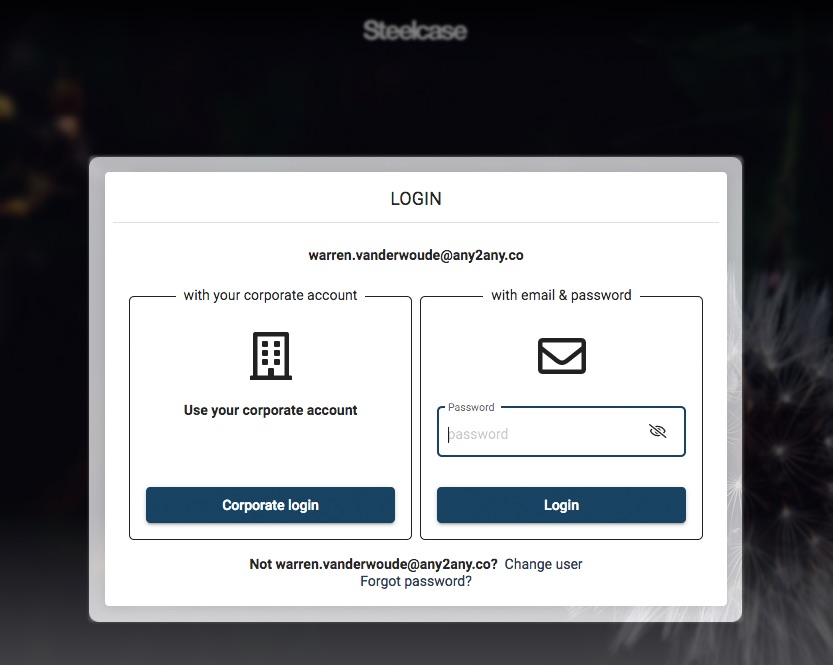
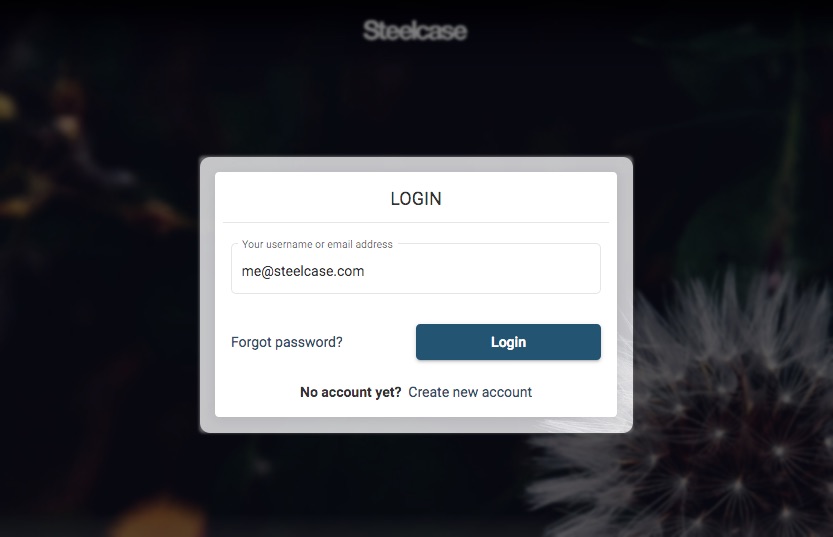
You can log in with the same email address that you used for registration. Once your email address has been entered, follow the instructions for logging in
Corporate Login (when enabled)
If corporate login / SSO has been enabled for your organisation, you will be prompted to continue using either your password or the option of using an SSO system, for example OneLogin