Creating a visit
This section describes the steps required to create a visit with the any2any outlook add-in.
Open the add-in
First, switch to outlooks calendar view and start creating a meeting request. Open the any2any add-in using either the top ribbon button (outlook client) or the 3-dot menu (Outlook Web app). Detailed instructions on how to reach the add in can be found here: Accessing the add-in.
Add/remove Visitors
To add visitors for you panned visit, simply add them as required attendees in outlook by either inputting their email-addresses into the required field or selecting them from your address book by clicking on the “required” button on the left of the required input:

The add-in will automatically detect any attendees you add or remove.
Visitor detail information
You can add additional details for your visitors that will enrich their visit experience.
To do so, simply click on the visitor in the any2any add-in:

This will open a detail view with fields for all available visitor information:
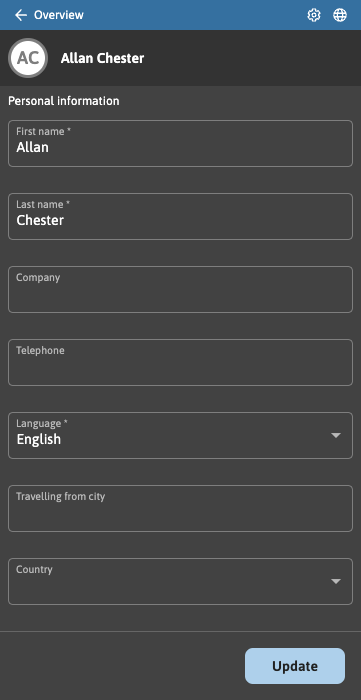
Update any details and click on the Update button on the bottom of the view. This will return you to the add-ins main view.
Note: While the add-in will try and detect the first and last names of your attendee based on their e-mail address, that may not always be possible. Therefore, it is recommended to check the details of visitors that are being added for the very first time.
Recent Visitors
Visitors that have been invited before, can be quickly added with all their detail information retained. To find and add recent visitors, click on the “recent” control in the add-in:
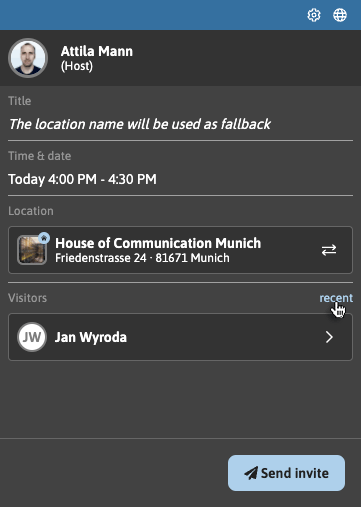
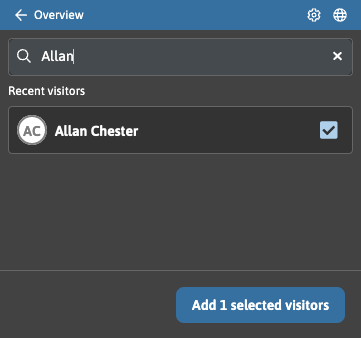
This will open the recent visitor search. Here, start tying the name of the visitor you would like to add. Results will be shown after entering more than two characters:
Select Time & Date
Select a time and date for the visit using Outlooks controls:

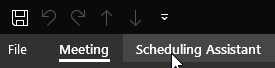
The Scheduling assistant can also be used to set the time. To open it, click on the “Scheduling Assistant” point on the top menu of outlooks invitation window:
Adding additional Services
Any additional services offered by the selected location will be displayed below the visitor details:
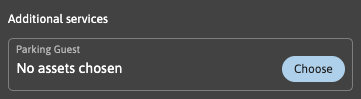
Select additional services by clicking on the specific input. Additional services can be freely configurable and may offer fields for added information as well as controls that allow booking of assets for the visitor. Every additional service is set per visitor.
Sending the Visit
After visitors have been added, and the time & date has been set, click the Send invite button to send the invite to your visitors:

The add-in will offer you controls to create another visit right after you send the invite:
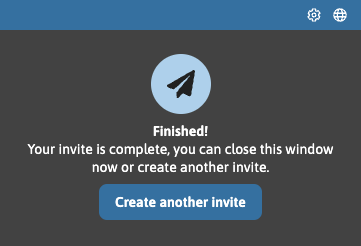
If you don’t want to create another invite, you can simply close the window. There is no need to send the meeting request via Outlooks native “send” button.
Outlook will ask you if you would like to save your changes, which is not necessary, as all meeting data is saved on the any2any platform.