Installing the outlook add-in
Outlook add-ins can be installed by various different methods. Regardless of installation method, add-ins automatically become available in all clients (Windows, MacOs, Outlook on the web) for that account. This section covers all currently available installation methods for the any2any outlook add-in.
Centralized deployment
If the add-in has been rolled out via centralized deployment by your administrators, it will either be available to you automatically, or you will be able to add it to your outlook ribbon from your admin-managed add-ins. To check if the add-in has been added for you:
Outlook Client
- Open your outlook client, select the home tab, and hit the Get Add-ins button in your main ribbon:
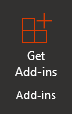
A separate window listing all available add-ins will open. - Select Admin-managed from the menu on the left-hand side. Here, all admin-managed add-ins that are available to you will be displayed.
- If the any2any add-in is available but not yet added, simply hit the Add button on the bottom of the add-in box.
- If the any2any add-in is not listed here, please check with your administrators.
OWA (Outlook web app)
- In Outlook on the web, select a message.
- Select More actions at the top of the message by clicking on the 3-dot menu

- Go to the bottom of the list and select. Get Add-ins.
- Select Admin-managed from the menu on the left-hand side. Here, all admin-managed add-ins that are available to you will be displayed.
- If the any2any add-in is available but not yet added, simply hit the Add button on the bottom of the add-in box.
- If the any2any add-in is not listed here, please check with your administrators.
Manually added
The add-in can also be added manually, which is especially useful for testing purposes. Please note: To add the add-in manually, you will need the URL of the manifest file.
Outlook client
Open outlook, and make sure the home tab is selected.

On the main ribbon, select Get Add-ins
OWA (Outlook web app)
- In Outlook on the web, select a message.
- Select More actions at the top of the message by clicking on the 3-dot menu
- Go to the bottom of the list and select. Get Add-ins.
- On the My add-ins page, select + Add a custom add-in from the menu on the bottom and choose Add from URL.
- Enter the manifest URL of the add-in
Microsoft Store
The any2any add-in is currently not publicly available in the Microsoft store.